To register a custom post type in WordPress is to give your site content of its own. Think books, products, events, or portfolio items — beyond the posts and pages WordPress ships with. You create one with register_post_type(), hooked to the init action. In turn, WordPress gives the type its own admin menu, editor, and URLs. This tutorial builds a Book type from a small plugin. Along the way it wires up the labels and a rewrite slug for pretty permalinks. Finally, show_in_rest makes the type work in the block editor and the REST API.
Requirements to register a custom post type:
- WordPress 6.0 or newer (tested on WordPress 7.0.2).
- Administrator access to install a plugin, or a child theme whose functions.php you can edit.
- PHP 7.4 or newer — the version your WordPress already runs on.
How To Register a Custom Post Type in WordPress.
The objective is to register a custom post type — a “Books” type. Specifically, it appears in the admin sidebar, opens the block editor, and serves a public archive at /books/.
Step 1.
First, create a plugin file so the code loads independently of your theme. In wp-content/plugins/, make a folder named book-post-type and, inside it, a file named book-post-type.php. The header comment is what makes WordPress list it on the Plugins screen.
<?php
/**
 * Plugin Name: Book Post Type
 * Description: Registers a "Book" custom post type.
 * Version:     1.0.0
 */

// Exit if accessed directly.
if (!defined('ABSPATH')) {
    exit;
}
Alternatively, paste the two functions below into your child theme’s functions.php. Even so, a plugin is better: it keeps the content type alive when you switch themes.
Step 2.
Next, define the labels — the words WordPress shows around the admin UI. Then hand them to register_post_type(), together with the arguments that control how the type behaves. Add this below the header.
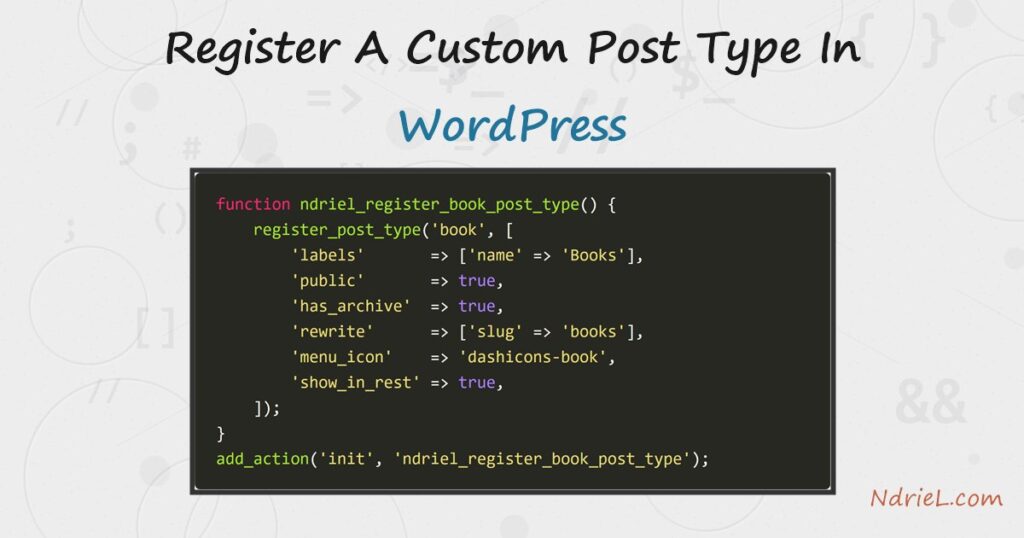
function ndriel_register_book_post_type() {

    // The text WordPress shows in menus, buttons, and messages.
    $labels = array(
        'name'          => 'Books',          // general (plural) name
        'singular_name' => 'Book',           // one item
        'menu_name'     => 'Books',          // the sidebar menu label
        'add_new_item'  => 'Add New Book',
        'edit_item'     => 'Edit Book',
        'view_item'     => 'View Book',
        'search_items'  => 'Search Books',
        'all_items'     => 'All Books',
        'not_found'     => 'No books found',
    );

    $args = array(
        'labels'        => $labels,
        'public'        => true,             // visible on the front end and in admin
        'has_archive'   => true,             // enable the /books/ archive page
        'rewrite'       => array('slug' => 'books'), // pretty permalinks
        'menu_icon'     => 'dashicons-book', // the sidebar icon
        'menu_position' => 5,               // just under Posts
        'supports'      => array('title', 'editor', 'thumbnail', 'excerpt'),
        'show_in_rest'  => true,             // block editor + REST API
    );

    register_post_type('book', $args);
}
add_action('init', 'ndriel_register_book_post_type');
The first argument to register_post_type() — 'book' — is the post type’s internal key. Keep it lowercase, under 20 characters, and never prefix it with wp_. Registering on the init hook is required. Run it any earlier, however, and WordPress is not ready. Run it any later and rewrite rules and the admin menu miss it.
Step 3.
Activate the plugin under Plugins in wp-admin. A Books menu then appears in the sidebar. It shows the book icon, an All Books list, and an Add New Book button. As a result, it opens the same block editor you use for posts.
One gotcha: the /books/ archive returns 404 until the rewrite rules are rebuilt. Go to Settings → Permalinks and click Save Changes once (you need not change anything) to flush them. Do this only after adding a post or two so the archive has something to show.
Result of registering the custom post type.
Add a couple of books, publish them, and visit http://your-site/books/. WordPress then serves the custom post type’s archive, listing each book with its excerpt and date. This proves the type is public, its archive is on, and the rewrite slug resolves:
GET /wp-json/wp/v2/types/book
{"name":"Books","slug":"book","rest_base":"book","has_archive":true,"hierarchical":false}

GET /wp-json/wp/v2/book?status=publish
[ {"title":"Clean Code",              "link":".../books/clean-code/"},
  {"title":"The Pragmatic Programmer","link":".../books/the-pragmatic-programmer/"} ]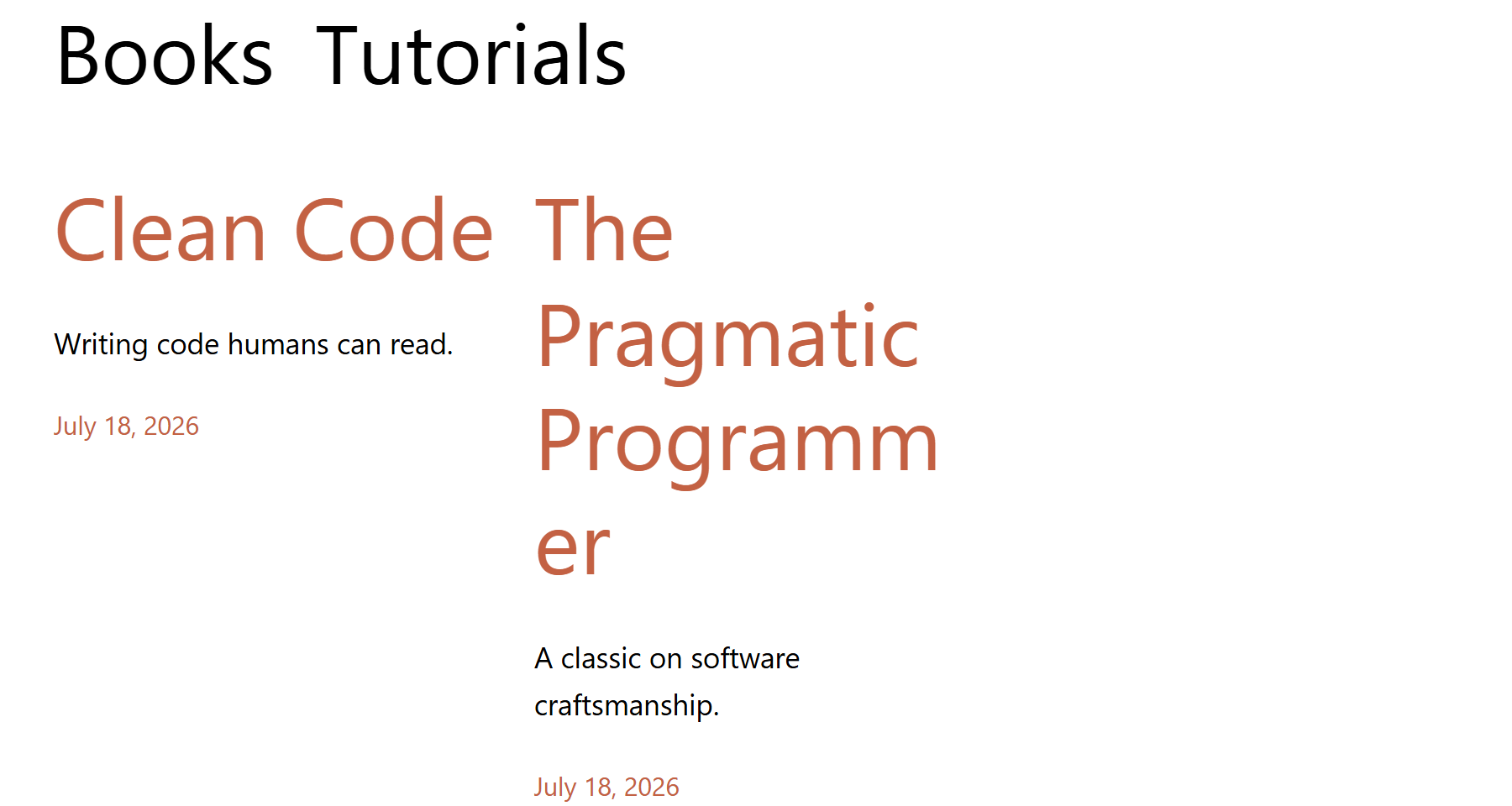
Notes:
- Always flush rewrite rules after adding or changing a
rewriteslug, or the new URLs 404. Saving the Permalinks screen does it. In a plugin, instead, callflush_rewrite_rules()from an activation hook — never on everyinit, which is expensive. - Prefix your function names (here
ndriel_) to avoid clashing with other plugins. However, do not prefix the post type key withwp_— those keys are reserved for core. - Set
'show_in_rest' => true(as above) so the type uses the block editor and is reachable at /wp-json/wp/v2/book. Without it you get the old classic editor and no REST endpoint. - Custom post types are not stored in your theme. Therefore, register them in a plugin, so switching themes never makes your content vanish from the admin.
- To group books by subject, pair the type with a custom taxonomy via
register_taxonomy(). That is the natural next step once the type exists. - A custom post type is a foundation you build on. For example, give authors a tag that renders its data with a shortcode in WordPress. Alternatively, load its front-end assets by learning to enqueue CSS and JavaScript.