A shortcode lets an author drop dynamic output into any post, page, or widget by typing a small tag in square brackets — [button] instead of hand-writing HTML. You create a shortcode by handing a name and a callback to add_shortcode(); the callback returns its markup (it never echoes), reads any attributes through shortcode_atts(), and — for an enclosing [tag]…[/tag] pair — receives the wrapped text as its second argument. This tutorial builds three shortcodes from a small plugin: a bare [year], a [button] that takes attributes, and an enclosing [notice].
Requirements to create a shortcode:
- WordPress 6.0 or newer (tested on WordPress 7.0.2).
- Administrator access to install a plugin, or a child theme whose functions.php you can edit.
- PHP 7.4 or newer — the version your WordPress already runs on.
How To Create a Shortcode in WordPress.
The objective is to register shortcodes an author can type into the editor — [year], [button url="…" text="…"], and [notice]…[/notice] — each expanding to real HTML on the front end.
Step 1.
First, create a plugin file so the shortcodes load independently of your theme. In wp-content/plugins/, make a folder named ndriel-shortcodes and, inside it, a file named ndriel-shortcodes.php. The header comment is what makes WordPress list it on the Plugins screen.
<?php
/**
 * Plugin Name: NdrieL Shortcodes
 * Description: Example [year], [button], and [notice] shortcodes.
 * Version:     1.0.0
 */

// Exit if accessed directly.
if (!defined('ABSPATH')) {
    exit;
}
You can instead paste the functions below into your child theme’s functions.php — a plugin just keeps the shortcodes working when you switch themes.
Step 2.
Then, register the simplest possible shortcode. add_shortcode() takes the tag name (what goes inside the brackets, without them) and a callback. The one rule that trips up beginners: the callback must return its output as a string, never echo it. WordPress substitutes the return value in place of the tag; anything you echo prints at the top of the page instead. Add this below the header.
function ndriel_year_shortcode() {
    return date('Y');
}
add_shortcode('year', 'ndriel_year_shortcode');
Now typing [year] anywhere in a post — a footer line such as “© [year] NdrieL”, say — renders the current year.
Step 3.
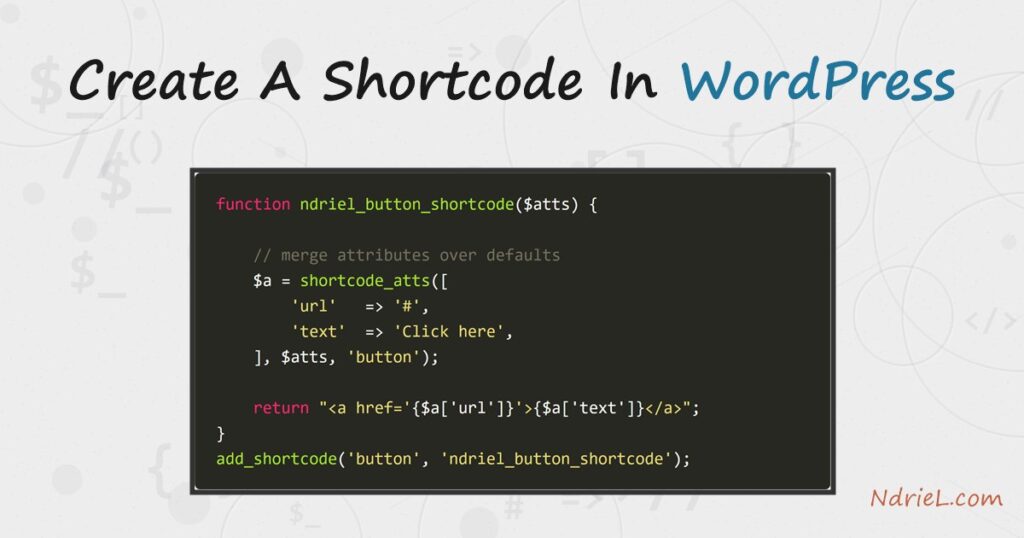
However, most shortcodes need input. Attributes typed as [button url="..." text="..."] arrive as the callback’s first argument, $atts. Pass them through shortcode_atts() to merge them over a set of defaults, so a missing attribute falls back instead of throwing a notice. Always escape values before printing them — esc_url(), esc_attr(), esc_html().
function ndriel_button_shortcode($atts) {

    // Merge the author's attributes over our defaults.
    $a = shortcode_atts(array(
        'url'   => '#',
        'text'  => 'Click here',
        'color' => '#2563eb',
    ), $atts, 'button');

    return sprintf(
        '<a class="ndriel-button" href="%s" style="background:%s">%s</a>',
        esc_url($a['url']),
        esc_attr($a['color']),
        esc_html($a['text'])
    );
}
add_shortcode('button', 'ndriel_button_shortcode');
The third argument to shortcode_atts() — 'button' — is the shortcode name; it lets other plugins filter your defaults and is good practice to include. WordPress lower-cases every attribute name, so [button URL="..."] would not match url — keep your keys lowercase.
Step 4.
Next, an enclosing shortcode wraps content: [notice]…[/notice]. Give the callback a second parameter, $content, and WordPress passes it whatever sits between the opening and closing tags. Run that text through do_shortcode() so nested shortcodes still expand, and through wp_kses_post() to strip any markup a post could not otherwise contain.
function ndriel_notice_shortcode($atts, $content = null) {

    $a = shortcode_atts(array('type' => 'info'), $atts, 'notice');

    return sprintf(
        '<div class="ndriel-notice ndriel-notice--%s">%s</div>',
        esc_attr($a['type']),
        do_shortcode(wp_kses_post($content))
    );
}
add_shortcode('notice', 'ndriel_notice_shortcode');
Default $content to null so the same callback still works if someone writes the self-closing form [notice] with no body.
Step 5.
The callbacks emit class names but no styling — add a little CSS so the button and notice look the part. Drop this into your theme’s stylesheet, or enqueue it from the plugin. It is plain CSS; nothing here is shortcode-specific.
.ndriel-button {
    display: inline-block;
    padding: 10px 18px;
    border-radius: 6px;
    color: #fff;
    text-decoration: none;
    font: 600 15px/1 system-ui, sans-serif;
}
.ndriel-notice {
    padding: 12px 16px;
    border-left: 4px solid #64748b;
    border-radius: 4px;
    background: #f1f5f9;
    margin: 16px 0;
}
.ndriel-notice--warning { border-color: #d97706; background: #fef3c7; }
Step 6.
Activate NdrieL Shortcodes under Plugins in wp-admin, then edit any page and type the shortcodes into a paragraph or a Shortcode block. Publish and view the page.
© [year] NdrieL. All rights reserved.

[button url="https://ndriel.com" text="Read the tutorial" color="#16a34a"]

[notice type="warning"]Back up your database before you begin.[/notice]
Result of the shortcode you create.
WordPress replaces each tag with its callback’s return value. The [year] becomes the current year, [button] expands to a styled link built from its attributes, and the enclosing [notice] wraps its text in a div. This is the exact HTML the shortcodes produced when run against WordPress 7.0.2 with do_shortcode():
[year]
→ 2026

[button url="https://ndriel.com" text="Read the tutorial" color="#16a34a"]
→ <a class="ndriel-button" href="https://ndriel.com"
     style="background:#16a34a">Read the tutorial</a>

[button]
→ <a class="ndriel-button" href="#"
     style="background:#2563eb">Click here</a>

[notice type="warning"]Back up your database before you begin.[/notice]
→ <div class="ndriel-notice ndriel-notice--warning">Back up your
     database before you begin.</div>
With the Step 5 CSS applied, that markup renders on the page like this:
![Create a shortcode in WordPress: a rendered page showing the [year] shortcode output '© 2026 NdrieL', a green [button] link reading 'Read the tutorial', and an amber [notice] warning box reading 'Back up your database before you begin.'](https://ndriel.com/wp-content/uploads/2026/07/create-a-shortcode-in-wordpress-result.png)
Notes on how to create a shortcode:
- Return, never echo. A shortcode callback that echoes prints its output at the very top of the page, before the content, because
do_shortcode()only substitutes what you return. This is the single most common shortcode bug. - Prefix your function names (here
ndriel_) to avoid clashing with other plugins. The shortcode tags themselves share one global namespace too — pick names unlikely to collide ([ndriel_button]is safer than[button]on a busy site). - Shortcodes only run where WordPress applies
the_content. To expand one in a widget or a theme template, calldo_shortcode()yourself, or (for widgets) enable it withadd_filter('widget_text', 'do_shortcode'). - Always escape output with
esc_url(),esc_attr(), andesc_html(), and sanitize enclosed content withwp_kses_post(). Attribute values come from whoever edits the post, so treat them as untrusted. - Remove a shortcode with
remove_shortcode('button'), and test whether one exists withshortcode_exists('button'). - A shortcode is one way to add dynamic output; a custom post type gives that output a home, and you can style it by learning to enqueue CSS and JavaScript.