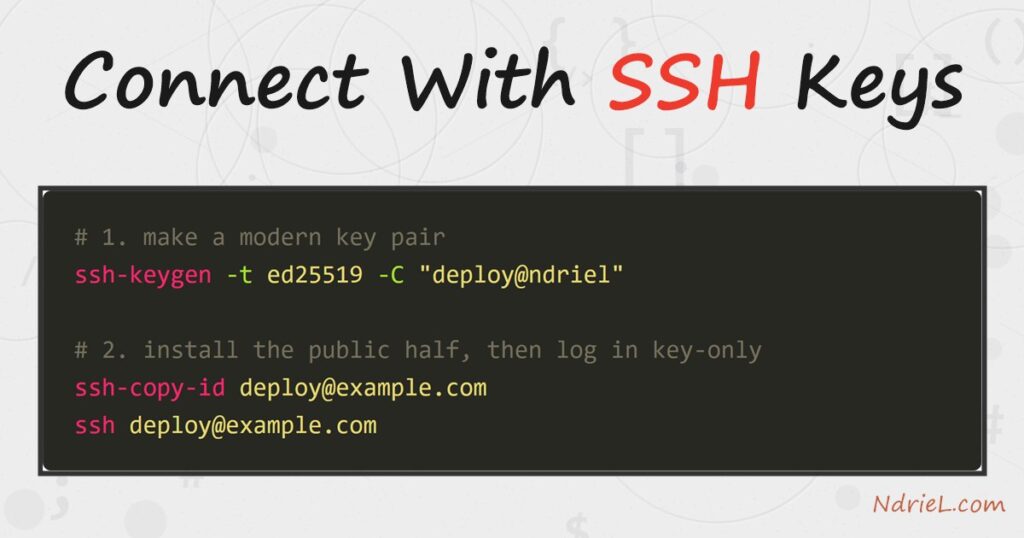
Connect to a remote server using SSH keys to log in without typing a password, and to make
the connection far harder to break than any password allows. SSH keys come in pairs: a private
key that never leaves your machine, and a public key you copy to the server. This tutorial
generates a key pair with ssh-keygen, installs the public half
on the server, logs in key-only, and then turns password logins off.
Requirements for SSH keys:
- An OpenSSH client on your machine (tested with OpenSSH 10.3) — built into macOS,
Linux, and Windows 10/11. - A remote server you can currently reach over SSH with a password, and the right to edit its
~/.ssh/authorized_keys.
How To Connect to a Remote Server Using SSH Keys.
The objective is a passwordless, key-only login to deploy@example.com. First you
create the pair, then you hand the server your public key, and finally you lock out passwords so
only the key works. Each step runs from your local terminal.
Step 1.
First, generate the key pair. The ed25519 type is small,
fast, and modern, so prefer it over RSA. The -C comment is
just a label to tell keys apart later.
ssh-keygen -t ed25519 -C "deploy@ndriel"Press Enter to accept the default path ~/.ssh/id_ed25519. When it asks for a
passphrase, set one — it encrypts the private key on disk, so a stolen laptop does not hand
over your servers. An agent can cache it, so you type it once per session.
Step 2.
Next, know your two files. The command wrote a private key and a public key side by side.
The .pub file is the one you share; the other never leaves your machine.
ls ~/.ssh/id_ed25519*
# id_ed25519       <- PRIVATE key, keep secret
# id_ed25519.pub   <- PUBLIC key, copy to servers
Guard the private key like a password. Anyone who copies it can log in as you, which is why
ssh-keygen stores it with owner-only permissions. Never paste
it into a chat, a repo, or a config file.
Step 3.
Then, copy the public key to the server. The ssh-copy-id
helper appends it to the server's authorized_keys over your existing password login.
This is the one time you still type the password.
ssh-copy-id deploy@example.comIf ssh-copy-id is unavailable (it is not on Windows), do the
same by hand: pipe the public key over SSH and append it, creating the folder if needed.
cat ~/.ssh/id_ed25519.pub | ssh deploy@example.com "mkdir -p ~/.ssh && cat >> ~/.ssh/authorized_keys"Step 4.
Next, log in with the key. Connect again, and this time SSH proves your identity with the
key instead of asking for the account password. You are only prompted for the key's passphrase,
which the agent then remembers.
ssh deploy@example.comTo save typing the user and host every time, add a short alias to ~/.ssh/config.
Then ssh web alone connects.
Host web
    HostName example.com
    User deploy
    IdentityFile ~/.ssh/id_ed25519
Step 5.
Finally, turn off password logins. Once the key works, disable passwords so brute-force
attempts cannot even try. Edit the server's /etc/ssh/sshd_config, set the line below,
then reload the service.
sudo sed -i 's/^#*PasswordAuthentication.*/PasswordAuthentication no/' /etc/ssh/sshd_config
sudo systemctl reload ssh
Keep your current session open while you test a fresh login in a second terminal. If the key
login still works, passwords are safely off; if you lock yourself out, the open session lets you
undo the change.
Result of connecting with SSH keys.
The generator prints the key's fingerprint and a randomart image, and the public key is a
single line you copy to the server. As a result, the next login needs no account password at
all. The output below is a real ssh-keygen run and the public
key it produced:
$ ssh-keygen -t ed25519 -C "deploy@ndriel"
Generating public/private ed25519 key pair.
Your identification has been saved in /home/deploy/.ssh/id_ed25519
Your public key has been saved in /home/deploy/.ssh/id_ed25519.pub
The key fingerprint is:
SHA256:TvT1U4yuUHdsdJGzdG1oOu9UuOitwAoXFPlYftvdMWY deploy@ndriel
The key's randomart image is:
+--[ED25519 256]--+
|        ..     o*|
|        ...   oO=|
|        o=  oo+oX|
|       o..oo++.E.|
|        S o. **++|
|       o o .o.=.o|
|      . o o..+   |
|       o . .. o  |
|        .   ..   |
+----[SHA256]-----+

$ cat ~/.ssh/id_ed25519.pub
ssh-ed25519 AAAAC3NzaC1lZDI1NTE5AAAAIBC+ANBCzdHLleI9K/zP/5PK62OKUOHCo2PI2egC21ZL deploy@ndriel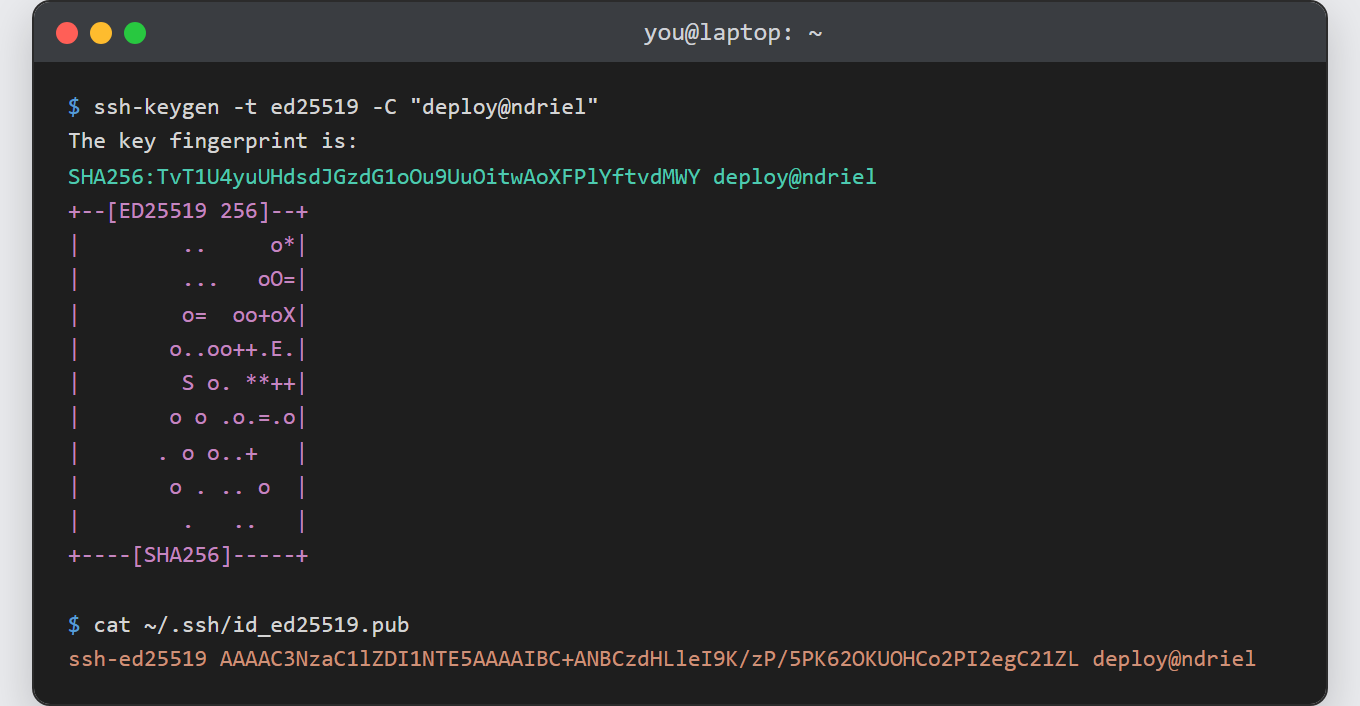
Notes on SSH keys:
- Never share the private key. Copy only the .pub file to servers. If a private key
leaks, delete its public key from every authorized_keys and generate a new pair. - Always set a passphrase. A passphrase-less key is a plaintext password on disk; the agent
means you still type it only once per session. - Permissions matter to sshd. The server ignores authorized_keys if
~/.ssh is group-writable. Keep the folder at700and
the file at600. - One key per machine, not per server. Reuse your single public key across many servers, and
give each laptop its own pair, so you can revoke one device without touching the others. - This is exactly the key auth an EC2 box expects. If you followed the guide to
create an Amazon EC2 instance,
you can add your own generated key to its authorized_keys instead of relying only on
the downloaded .pem.