Schedule tasks with cron to run a command automatically on a fixed timetable — a nightly
backup, an hourly sync, a weekly cleanup. The cron daemon reads a per-user table where
each line pairs five time fields with a command. This tutorial opens your crontab, writes a job
with the correct schedule, redirects its output to a log, and confirms cron actually ran it.
Requirements to schedule tasks with cron:
- A Linux server with the cron service running (tested on Ubuntu 24.04, cron
3.0pl1). Check withsystemctl status cron. - A command or script to run, reachable by an absolute path (e.g.
/usr/local/bin/backup.sh), and marked executable.
How To Schedule Tasks With Cron.
The objective is a job that runs every night at 2:30 and logs what it did. First we read the
five-field syntax, then we add the line, and finally we verify cron fired it. Each user has
their own crontab, so the job runs as you.
Step 1.
First, open your crontab for editing. This command opens the per-user table in your default
editor; the -e flag means edit. On first use it asks which
editor to use.
crontab -eNever edit the files under /var/spool/cron directly. Always go through
crontab -e, because it checks your syntax and reloads cron when
you save.
Step 2.
Next, understand the five time fields. Every job line starts with them, in this order:
minute, hour, day-of-month, month, and day-of-week. A * means
“every”. The comment below is the map worth memorising.
# ┌───────── minute (0-59)
# │ ┌─────── hour (0-23)
# │ │ ┌───── day of month (1-31)
# │ │ │ ┌─── month (1-12)
# │ │ │ │ ┌─ day of week (0-6, Sunday = 0)
# │ │ │ │ │
# * * * * *  command to run
So 30 2 * * * reads as “at minute 30 of hour 2, every day”.
For example, */15 * * * * runs every 15 minutes, and
0 9 * * 1 runs at 9:00 each Monday.
Step 3.
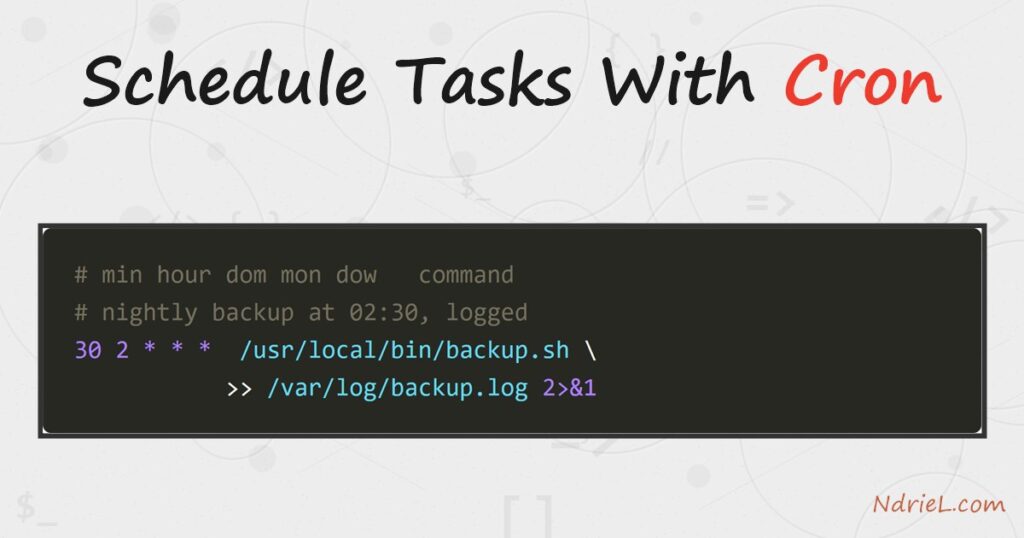
Then, add the job and log its output. Put this line at the bottom of the crontab, save, and
exit. It runs the backup nightly and appends both normal output and errors to a log file.
# Nightly database backup at 02:30, logged.
30 2 * * * /usr/local/bin/backup.sh >> /var/log/backup.log 2>&1
The >> appends stdout to the log, and
2>&1 folds errors into the same file. Without this, cron
emails the output instead, which you rarely see on a server. A log you can read is far more
useful.
Step 4.
Finally, confirm the job is registered and watch it run. List your crontab to check the line
saved, then read the system log to see cron execute it on schedule.
crontab -l
grep CRON /var/log/syslog | tail -n 3
The first command prints your jobs. The second shows cron’s own record of running them, which
is how you prove a job fired without waiting by the terminal all night.
Result after you schedule tasks with cron.
After saving, crontab -l echoes the job back, and the syslog
shows cron running the command at 02:30 as the correct user. As a result, the backup happens
unattended and the log records each run. The transcript below shows both:
$ crontab -l
# Nightly database backup at 02:30, logged.
30 2 * * * /usr/local/bin/backup.sh >> /var/log/backup.log 2>&1

$ grep CRON /var/log/syslog | tail -n 3
Jul 26 02:30:01 web CRON[48213]: (deploy) CMD (/usr/local/bin/backup.sh >> /var/log/backup.log 2>&1)
Jul 26 02:30:04 web CRON[48210]: (deploy) MAIL (mailed 0 byte of output; job completed)
Jul 26 02:30:04 web CRON[48210]: pam_unix(cron:session): session closed for user deploy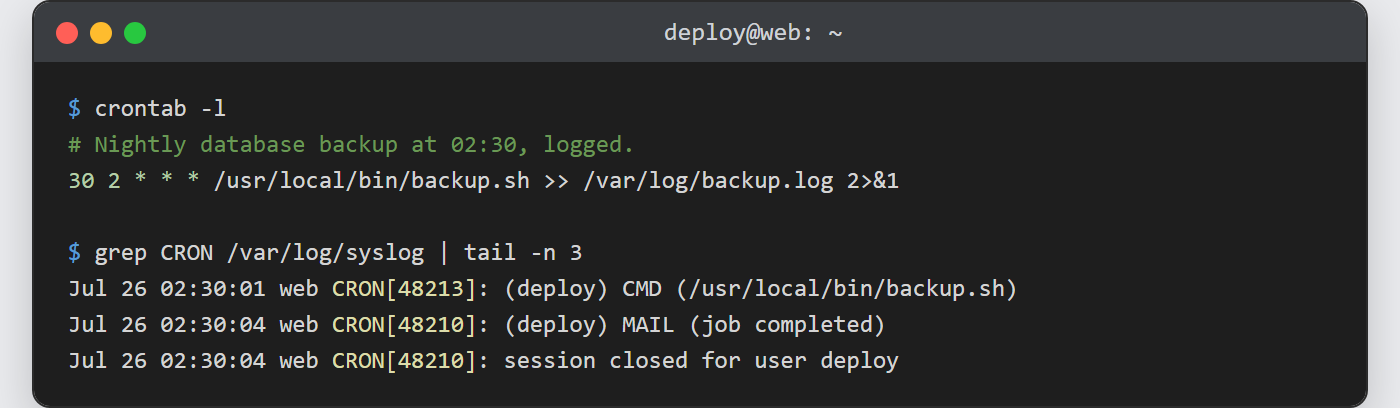
Notes on how to schedule tasks with cron:
- Cron runs with a bare environment. It does not load your shell profile, so
$PATHis minimal. Always use absolute paths for commands and
files, or setPATH=at the top of the crontab. - Escape the percent sign. A literal
%in a cron command
means a newline unless you write\%. This bites anyone using
date +%Y-%m-%din a job. - Shortcuts save typing. Cron accepts
@daily,
@hourly,@reboot, and
@weeklyin place of the five fields for common schedules. - System jobs live elsewhere. Files in /etc/cron.d and /etc/crontab add a
sixth field for the user to run as; a personalcrontab -e
does not, because it already runs as you. - A classic use is a scheduled database dump. Point the job at a script that runs
a MySQL backup from the terminal,
and cron keeps a fresh copy every night.