Secure a site with a free Let’s Encrypt certificate so browsers show the padlock and all
traffic travels over HTTPS. The certbot tool talks to the Let’s Encrypt authority,
proves you control the domain, and installs a trusted certificate straight into Apache. This
tutorial installs certbot, runs it against a live virtual host, and confirms the certificate
renews itself, so the padlock never lapses.
Requirements for a Let’s Encrypt certificate:
- Ubuntu 24.04 with Apache 2.4 and root (or
sudo) access.
Tested with certbot 2.11. - A real domain whose DNS A record already points at the server’s public IP —
Let’s Encrypt validates over the public internet. - An Apache virtual host answering on port 80 for that domain, and ports 80 and 443 open in
the firewall.
How To Secure a Site With a Let’s Encrypt Certificate.
The objective is a green padlock on https://example.com, issued and renewed for
free. Certbot reads your existing virtual host to learn the domain, requests the certificate,
and rewrites the config to serve it — you approve each step.
Step 1.
First, install certbot. The Let’s Encrypt project recommends the snap build, because it
always ships the current version. Install it, then link the command onto your path.
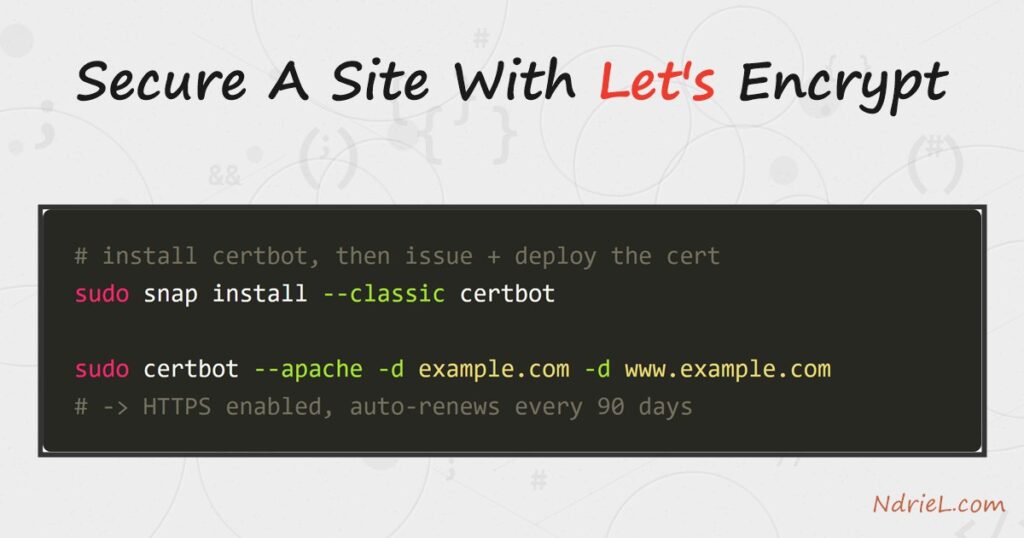
sudo snap install --classic certbot
sudo ln -s /snap/bin/certbot /usr/local/bin/certbot
On a system without snap, sudo apt install certbot python3-certbot-apache
works too, though its version can lag. Either way, the Apache plugin is what lets certbot edit
your config.
Step 2.
Next, confirm the site answers on port 80. Certbot proves domain control by placing a file
Apache must serve, so the plain-HTTP virtual host has to work first. A quick request should
return your page, not a 404.
curl -I http://example.comIf that fails, fix the virtual host before continuing — see how to
create an Apache virtual host.
Certbot cannot validate a domain it cannot reach.
Step 3.
Then, run certbot with the Apache plugin. Name every domain the certificate should cover
with -d. Certbot asks for a contact email, has you accept the
terms, and offers to redirect HTTP to HTTPS for you.
sudo certbot --apache -d example.com -d www.example.comChoose the redirect option when prompted, so plain requests forward to HTTPS automatically.
Certbot then writes a new *:443 virtual host and reloads Apache.
Behind the scenes it also configures the same 301 you would otherwise
build with mod_rewrite
by hand.
Step 4.
Finally, prove that automatic renewal works. A Let’s Encrypt certificate lasts 90 days, and
certbot installs a timer to renew it. Run the built-in dry run to test that path without using
up a real renewal.
sudo certbot renew --dry-run
systemctl list-timers snap.certbot.renew.timer
A successful dry run means the live renewal will succeed too. The timer fires twice a day and
only acts when a certificate is within 30 days of expiry, so you never touch it again.
Result of installing the Let’s Encrypt certificate.
Certbot reports success, names the files it wrote under
/etc/letsencrypt/live/example.com/, and prints the expiry date. As a result, the site
now answers on HTTPS with a trusted certificate, and the browser shows the padlock. The output
below is what a successful issue looks like:
Successfully received certificate.
Certificate is saved at: /etc/letsencrypt/live/example.com/fullchain.pem
Key is saved at:         /etc/letsencrypt/live/example.com/privkey.pem
This certificate expires on 2026-10-24.
Deploying certificate
Successfully deployed certificate for example.com to /etc/apache2/sites-enabled/example-le-ssl.conf
Congratulations! You have successfully enabled HTTPS on https://example.com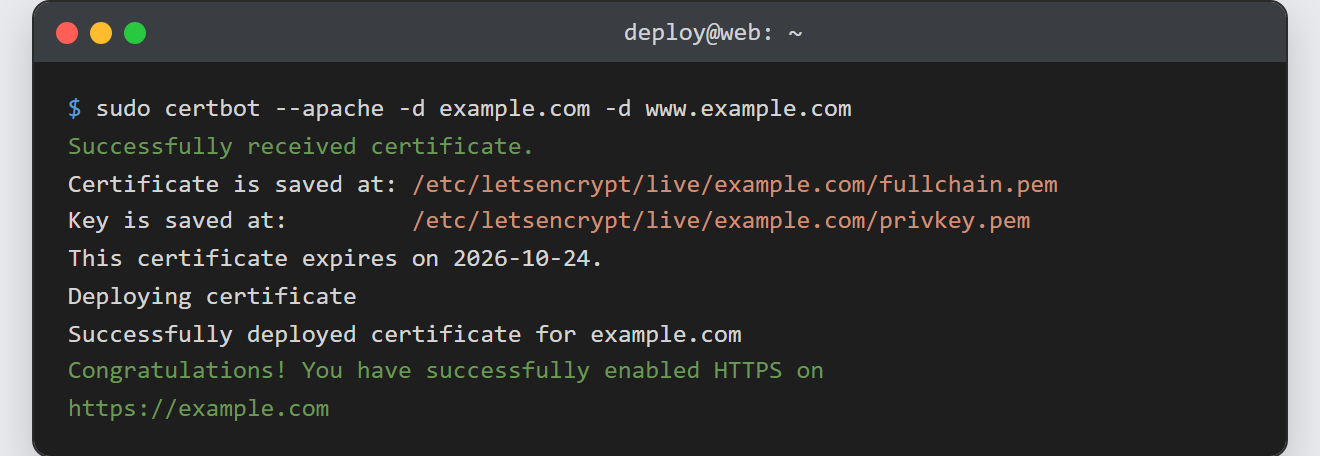
Notes on the Let’s Encrypt certificate:
- Renewal is automatic, but watch the timer. If the server was offline when the timer fired,
runsudo certbot renewby hand. Check status any time with
sudo certbot certificates. - Rate limits are real. Let’s Encrypt caps certificates per domain per week, so use
--dry-runwhile testing instead of burning live issues. - DNS must resolve first. The most common failure is an A record that does not yet
point at the server, or a firewall blocking port 80. Certbot’s error names which check failed. - Keep the private key secret. Everything under /etc/letsencrypt/ is owned by root
for a reason; never copy privkey.pem into a web-readable folder. - Once HTTPS is live, make sure nothing still serves plain HTTP. If you skipped certbot’s
redirect prompt, add the rule yourself and
point your virtual host
entirely at the secure block.