Schedule recurring tasks with WP-Cron, WordPress’s built-in scheduler — no server access required. You hook a function to a custom action, then wp_schedule_event() fires that action on a recurrence you pick. First, this tutorial writes the task and registers a custom five-minute interval through the cron_schedules filter. Next, it schedules the event exactly once, guarded by wp_next_scheduled(). Then it verifies the schedule and watches the task actually run. Finally, it unschedules cleanly and explains WP-Cron’s one big caveat: it ticks on page loads, not on a real clock.
Requirements to schedule recurring tasks with WP-Cron:
- WordPress 6.0 or newer (tested on WordPress 7.0.2). Of course, WP-Cron is part of core.
- Access to your theme’s functions.php or a plugin file.
- PHP 7.4 or newer — the version your WordPress already runs on.
How To Schedule the Recurring Task With WP-Cron.
The objective is a task that runs every five minutes — here it just writes a line to the error log, standing in for whatever you actually need: clearing caches, syncing a feed, sending digests.
Step 1.
First, write the task and give it a hook of its own. The scheduler does not call functions directly — instead, it fires an action, and whatever is attached to that action runs. Prefix the hook name so it cannot collide with another plugin’s.
add_action('ndriel_demo_task', function () {
    error_log('ndriel_demo_task ran at ' . current_time('H:i:s'));
});
Step 2.
Next, add the recurrence. WordPress ships four intervals — hourly, twicedaily, daily, and weekly — while the cron_schedules filter adds any other. In addition, each entry needs the interval in seconds and a display name.
add_filter('cron_schedules', function ($schedules) {
    $schedules['every_five_minutes'] = [
        'interval' => 5 * MINUTE_IN_SECONDS,
        'display'  => 'Every Five Minutes',
    ];
    return $schedules;
});
Step 3.
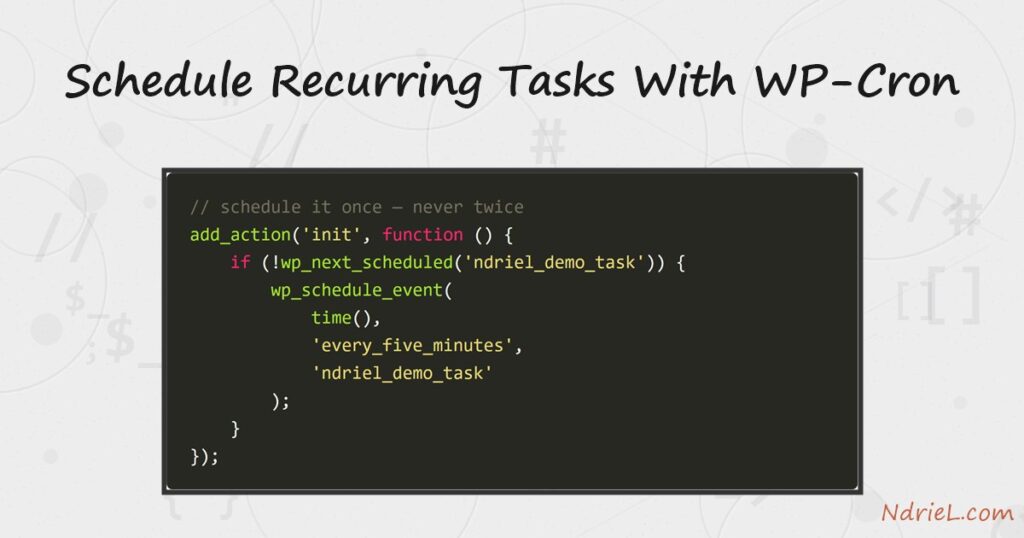
Then, schedule the event — once. wp_schedule_event() takes the first-run timestamp, the recurrence, and the hook. However, it does not check for duplicates: unguarded, this code would stack a new copy of the event on every page load. The wp_next_scheduled() check is what makes it run exactly once.
add_action('init', function () {
    if (!wp_next_scheduled('ndriel_demo_task')) {
        wp_schedule_event(time(), 'every_five_minutes', 'ndriel_demo_task');
    }
});
Step 4.
Now verify. wp_get_scheduled_event() returns the pending event — its hook, next timestamp, and recurrence. This is the real event as WordPress 7.0.2 stored it:
print_r(wp_get_scheduled_event('ndriel_demo_task'));stdClass Object
(
[hook] => ndriel_demo_task
[timestamp] => 1786103385
[schedule] => every_five_minutes
[interval] => 300
)Instead of waiting for a visitor to trigger it, request the cron endpoint directly. The task runs and logs; ask again within the five minutes and nothing happens, because the next run is not due yet.
curl "https://example.com/wp-cron.php?doing_wp_cron"Step 5.
Finally, clean up after yourself. wp_clear_scheduled_hook() removes every pending event for a hook — in fact, a plugin should always do this on deactivation, or its orphaned events sit in the schedule forever.
register_deactivation_hook(__FILE__, function () {
    wp_clear_scheduled_hook('ndriel_demo_task');
});
Result of scheduling the recurring task with WP-Cron.
The event fires on schedule: the first tick logs its line, an early manual trigger correctly does nothing, and once the five minutes have passed the next hit runs it again. The second line lands at 11:50:01 rather than 11:49:45 sharp — because WP-Cron ran the task on the first request after it came due, which is exactly how it works. This is the real error-log output from WordPress 7.0.2:
ndriel_demo_task ran at 11:44:47
ndriel_demo_task ran at 11:50:01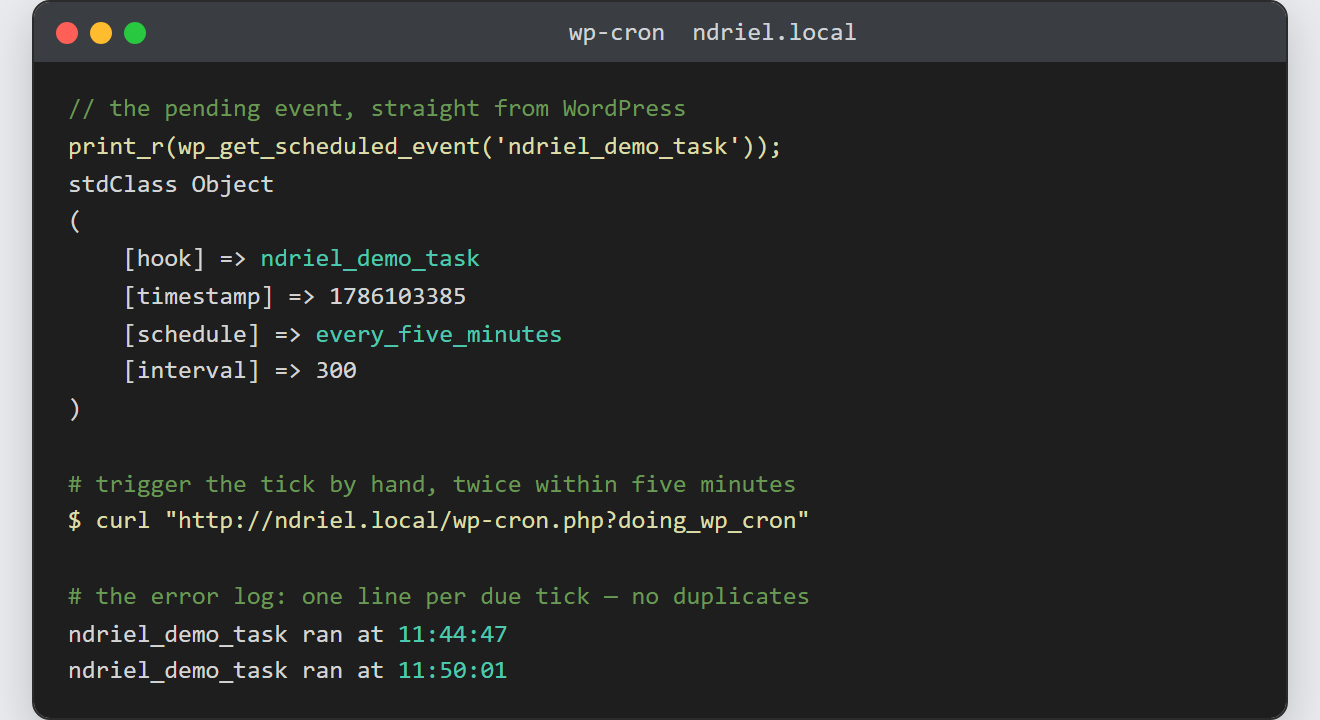
Notes on scheduling recurring tasks with WP-Cron:
- WP-Cron is not a clock. It piggybacks on page loads: for example, a visitor arrives, WordPress checks for due events, and runs them. As a result, on a quiet site a “five minute” task may wait hours — the interval is a minimum, not a guarantee.
- For real punctuality, disable the piggyback with
define('DISABLE_WP_CRON', true);in wp-config.php, then have the system cron hit wp-cron.php on a real schedule — the setup is exactly what scheduling tasks with cron covers:*/5 * * * * curl -s https://example.com/wp-cron.php?doing_wp_cron > /dev/null - Also, timestamps are UTC —
time(), not a local-time value. To start a daily task at a local hour, convert first. - Similarly, a one-off future task uses
wp_schedule_single_event()— same idea, no recurrence. - Recurring work pairs naturally with cached data: a WP-Cron task is therefore the right place to refresh what the Transients API caches before it expires.