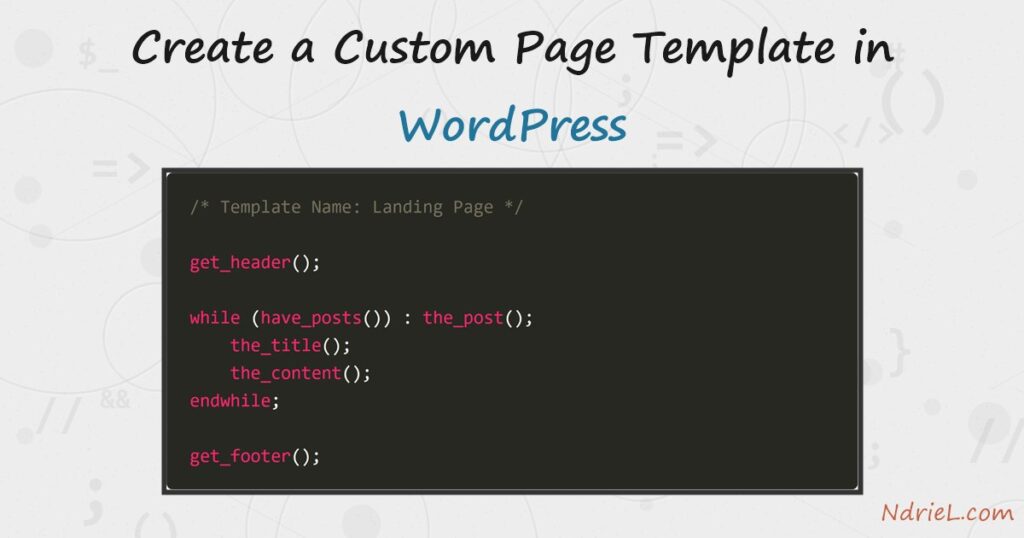
A custom page template lets one page break out of your theme’s default layout — a full-width landing page, a contact page, a page with no sidebar. You create a custom page template by adding a Template Name: header to a PHP file in your theme; WordPress then lists it in the Page editor, and any page you assign it to renders through that file instead of page.php. This tutorial builds a full-width Landing Page template from scratch, assigns it to a page, and confirms the page renders through it.
Requirements to create a custom page template:
- WordPress 6.0 or newer (tested on WordPress 7.0.2).
- A classic theme — one with PHP files like page.php and header.php. Block themes template differently (see the Notes).
- Access to edit your theme’s files, ideally through a child theme so an update cannot overwrite them.
How To Create a Custom Page Template in WordPress.
The objective is to add a template file WordPress recognises, pick it in the Page editor, and have that one page use a different layout from the rest of the site.
Step 1.
First, create the template file. In your active theme folder — here wp-content/themes/ndriel/ — add a file named template-landing.php. The one line that matters is the Template Name: comment. WordPress scans every PHP file in the theme for that header, so its presence alone registers the template.
<?php
/**
 * Template Name: Landing Page
 *
 * A full-width landing template: no sidebar, a hero band above the content.
 */
The file name is up to you; the label the editor shows comes from the header text, not the file name. A template- prefix is just a common convention that keeps template files grouped together.
Step 2.
Next, give the template a body. A page template is a normal theme file, so it opens with get_header(), runs the loop to print the page’s title and content, and closes with get_footer(). Because this template drops the sidebar, it never calls get_sidebar() — that omission is what makes it full-width.
get_header();
?>

<main class="landing">

    <?php while (have_posts()) : the_post(); ?>

        <section class="landing-hero">
            <h1><?php the_title(); ?></h1>
            <p class="landing-tagline"><?php echo esc_html(get_the_excerpt()); ?></p>
        </section>

        <div class="landing-body">
            <?php the_content(); ?>
        </div>

    <?php endwhile; ?>

</main>

<?php
get_footer();
The landing-hero and landing-body wrappers are unique to this template, so you can style them without touching any other page.
Step 3.
Then, add a little CSS so the hero band stands out. Put this in your theme’s stylesheet, or enqueue it properly from functions.php. It is ordinary CSS; nothing here is template-specific.
.landing-hero {
    padding: 64px 24px;
    text-align: center;
    background: #f8703c;
    color: #fff;
}
.landing-hero h1 { font-size: 2.4rem; margin: 0 0 12px; }
.landing-tagline { font-size: 1.15rem; opacity: .9; margin: 0; }
.landing-body { max-width: 720px; margin: 40px auto; padding: 0 24px; }
Step 4.
Finally, assign the template to a page. In wp-admin open Pages → Add New (or edit an existing page), give it a title and some content, then in the editor sidebar open the Page tab and pick Landing Page under Template. Publish, and view the page. WordPress stores your choice in the page’s _wp_page_template meta and routes the request through template-landing.php.
// what WordPress records on the page when you pick the template:
_wp_page_template = template-landing.php
Result of the custom page template.
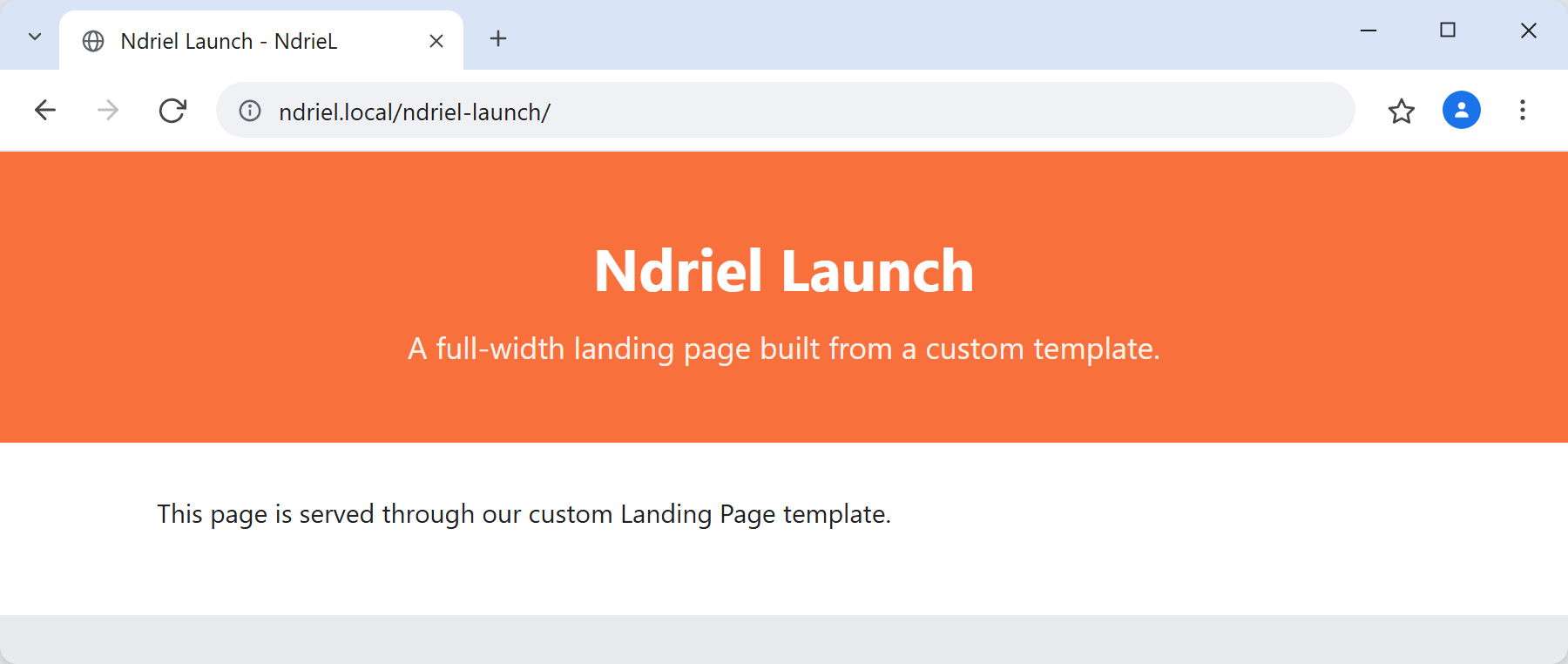
The page now renders through your template, not page.php. The markup proves it: the landing-hero and landing-body wrappers exist only in template-landing.php, so their presence in the response means WordPress used your file. This is the real HTML returned for the assigned page on WordPress 7.0.2:
$ curl -s http://ndriel.local/ndriel-launch/

<title>Ndriel Launch - NdrieL</title>
...
<main class="landing">
  <section class="landing-hero">
    <h1>Ndriel Launch</h1>
    <p class="landing-tagline">A full-width landing page built from a custom template.</p>
  </section>
  <div class="landing-body">
    <p>This page is served through our custom Landing Page template.</p>
  </div>
</main>
With the Step 3 CSS applied, that template renders the page like this:
Notes on the custom page template:
- Classic themes only. The
Template Name:header works in classic (PHP) themes. A block theme uses HTML template files in a templates/ folder plus atemplatePartsentry in theme.json, not this header — ndriel runs a classic theme, so this is the right approach here. - Edit templates in a child theme. Files in the parent theme are overwritten on update. Add the template to a WordPress child theme instead so your work survives.
- The template applies only to the Page post type by default. To offer it for posts too, add
Template Post Type: post, pagebelow the name line. - A page-specific template like page-about.php or page-42.php is picked up automatically by the template hierarchy, with no header and no editor choice — use that when a page should always use one layout. The
Template Name:approach is for a reusable template you assign by hand. - If the template does not appear in the editor, check the header comment is a valid PHP block comment at the very top of the file and that you are editing the active theme.