A WordPress child theme inherits everything from a parent theme — its templates, styles, and functions. Meanwhile, your customizations stay in a separate folder. So when the parent theme updates, your changes survive untouched. This tutorial creates a child of the block theme twentytwentythree. You build a folder and a style.css with the required header, then activate it like any other theme.
Requirements for a WordPress child theme:
- WordPress 6.1 or newer (tested on WordPress 7.0.2).
- The parent theme installed — here the block theme twentytwentythree, which ships with WordPress.
- Access to the wp-content/themes folder, via SFTP, a file manager, or a local install.
How To Create a WordPress Child Theme.
The objective is a working child of twentytwentythree that you can activate and customize. First, a folder. Next, a stylesheet with the header WordPress reads. Finally, an optional functions file for custom code.
Step 1.
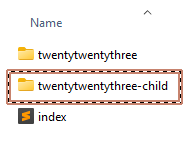
First, create the child theme’s folder. Inside wp-content/themes, add a folder named twentytwentythree-child. The convention is the parent’s folder name plus -child. Therefore, keeping every change inside this one folder protects your work from parent updates.
Step 2.
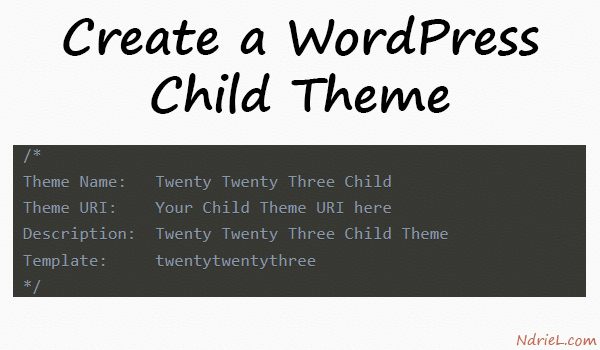
Then, create the child theme’s stylesheet. Inside twentytwentythree-child, add a file named style.css. WordPress reads a header comment at the top to identify the theme. However, only two fields are mandatory: Theme Name and Template.
/*
Theme Name:   Twenty Twenty Three Child
Template:     twentytwentythree
Theme URI:    https://example.com/twentytwentythree-child
Description:  A twentytwentythree child theme.
Author:       Your Name
Version:      1.0.0
License:      GNU General Public License v2 or later
License URI:  http://www.gnu.org/licenses/gpl-2.0.html
Text Domain:  twentytwentythreechild
*/
The Template value must match the parent’s folder name exactly — twentytwentythree, not the display name. Get that wrong and WordPress cannot find the parent, so the child will not activate. The remaining lines are metadata; fill them in or leave them for later.
Step 3.
Next, add custom code only if you need it. On a block theme like twentytwentythree, WordPress loads your child’s style.css automatically. In addition, the parent’s templates and theme.json come through inheritance. So you can often skip functions.php entirely. You need it mainly for a classic (non-block) parent, where you enqueue both stylesheets yourself:
<?php
// Only for a CLASSIC parent theme - block themes load style.css on their own.
function twentytwentythreechild_enqueue_styles() {
    wp_enqueue_style('parent-style', get_template_directory_uri() . '/style.css');
    wp_enqueue_style(
        'child-style',
        get_stylesheet_uri(),
        array('parent-style'),                 // load the child after the parent
        wp_get_theme()->get('Version')
    );
}
add_action('wp_enqueue_scripts', 'twentytwentythreechild_enqueue_styles');
This enqueues the parent stylesheet first, then the child’s, with the child depending on the parent. Never reach for the old @import trick instead — an enqueue is faster and is the current standard.
Step 4.
Finally, activate the child theme. In wp-admin, open Appearance → Themes, find Twenty Twenty Three Child, and click Activate. Your site now runs on the child theme. It inherits the parent exactly, while every customization stays in your own folder.
Result of the WordPress child theme.
The child theme’s folder holds a single style.css, plus an optional functions.php, and WordPress lists it on the Themes screen. Activating it changes nothing visually at first — that is the point. As a result, the child inherits the parent exactly, and your edits build on top from here.

Notes on the WordPress child theme:
- Block vs classic parents. twentytwentythree is a block theme, so its child needs only style.css. For a classic PHP parent, add the functions.php enqueue from Step 3.
- Override a parent template by copying it into the child and editing the copy; WordPress then uses the child’s version. For block themes, edit templates in the Site Editor — it saves your changes to the child automatically.
- Keep the Template header exact. A typo there is the most common reason a child theme refuses to activate.
- A child theme is the safe place to add front-end code. From here you can enqueue CSS and JavaScript from its functions.php, or drop in a shortcode in WordPress.