Create a systemd service to keep a long-running program alive — started at boot, restarted on a crash, logs collected, all without a terminal session babysitting it. A service is one small unit file: [Unit] describes it, [Service] says what to run with ExecStart and Restart=, and [Install] hooks it into boot. First, this tutorial writes a tiny script and wraps it in a unit. Next, systemctl enable --now starts it, and journalctl reads its output. Finally, we kill the process on purpose and watch systemd bring it straight back.
Requirements to create a systemd service:
- A Linux server running systemd — tested on Ubuntu 24.04 LTS with systemd 255. Every mainstream distribution ships it.
- A user with sudo, because unit files live in /etc/systemd/system.
How To Create the systemd Service.
The objective is to run a small looping script as a managed service named hello.service — enabled at boot, supervised while running, and fully inspectable with the standard tools.
Step 1.
First, create the program the service will run. Save this as /usr/local/bin/hello-loop.sh — it prints a timestamped line every ten seconds, standing in for any worker, queue consumer, or app server you actually care about. Then make it executable.
#!/bin/bash
while true; do
  echo "hello from the demo service: $(date "+%H:%M:%S")"
  sleep 10
done
sudo chmod +x /usr/local/bin/hello-loop.shStep 2.
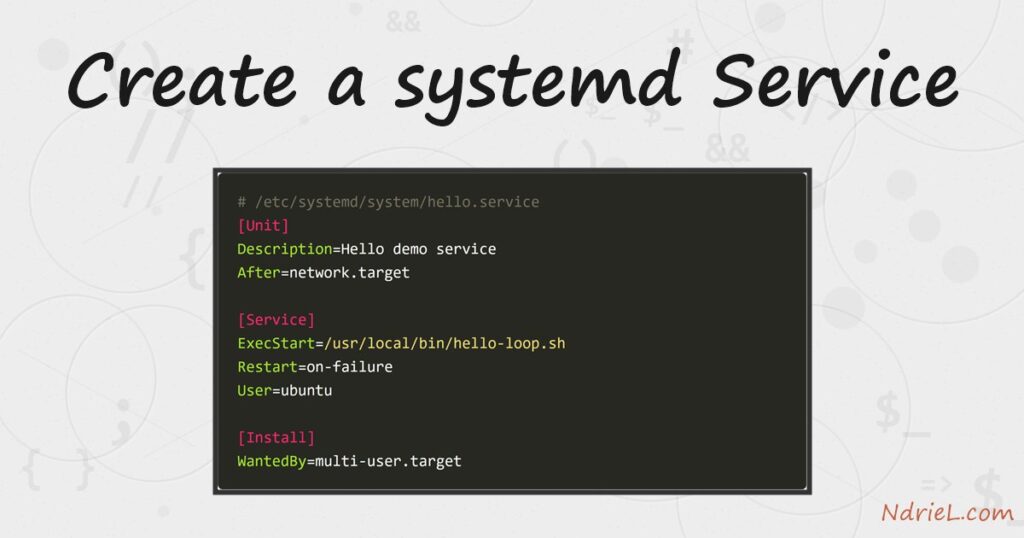
Next, write the unit file. Save this as /etc/systemd/system/hello.service. Three sections do all the work: [Unit] gives a description and orders the service after the network is up, [Service] names the command and the restart policy and drops privileges to a normal user, and [Install] ties it to the standard multi-user boot target.
[Unit]
Description=Hello demo service
After=network.target

[Service]
ExecStart=/usr/local/bin/hello-loop.sh
Restart=on-failure
User=ubuntu

[Install]
WantedBy=multi-user.target
Note that ExecStart must be an absolute path. Also, Restart=on-failure means systemd restarts the process on a crash or kill, but not after a clean exit.
Step 3.
Then, load and start it. systemd only re-reads unit files on demand, so daemon-reload comes first; enable --now both registers the service for boot and starts it immediately.
sudo systemctl daemon-reload
sudo systemctl enable --now hello.service
sudo systemctl status hello.service
● hello.service - Hello demo service
Loaded: loaded (/etc/systemd/system/hello.service; enabled; preset: enabled)
Active: active (running) since Fri 2026-08-07 11:35:40 UTC; 22s ago
Main PID: 855412 (hello-loop.sh)
Tasks: 2 (limit: 2192)
Memory: 560.0K (peak: 1.1M)
CGroup: /system.slice/hello.service
├─855412 /bin/bash /usr/local/bin/hello-loop.sh
└─855419 sleep 10Step 4.
Now read its logs. Everything the script prints lands in the journal, tagged with the unit name — no log files to manage. -n 6 shows the last six entries, and -f would follow live.
sudo journalctl -u hello.service -n 6Aug 07 11:35:40 ip-172-31-20-62 systemd[1]: Started hello.service - Hello demo service.
Aug 07 11:35:40 ip-172-31-20-62 hello-loop.sh[855412]: hello from the demo service: 11:35:40
Aug 07 11:35:50 ip-172-31-20-62 hello-loop.sh[855412]: hello from the demo service: 11:35:50
Aug 07 11:36:00 ip-172-31-20-62 hello-loop.sh[855412]: hello from the demo service: 11:36:00Step 5.
Finally, test the supervision — kill the process and watch it come back. Because of Restart=on-failure, systemd notices the unclean death, schedules a restart, and starts a fresh process within moments.
sudo kill -9 855412
sudo journalctl -u hello.service -n 4
systemd[1]: hello.service: Failed with result 'signal'.
systemd[1]: hello.service: Scheduled restart job, restart counter is at 1.
systemd[1]: Started hello.service - Hello demo service.
hello-loop.sh[855454]: hello from the demo service: 11:36:02Result of creating the systemd service.
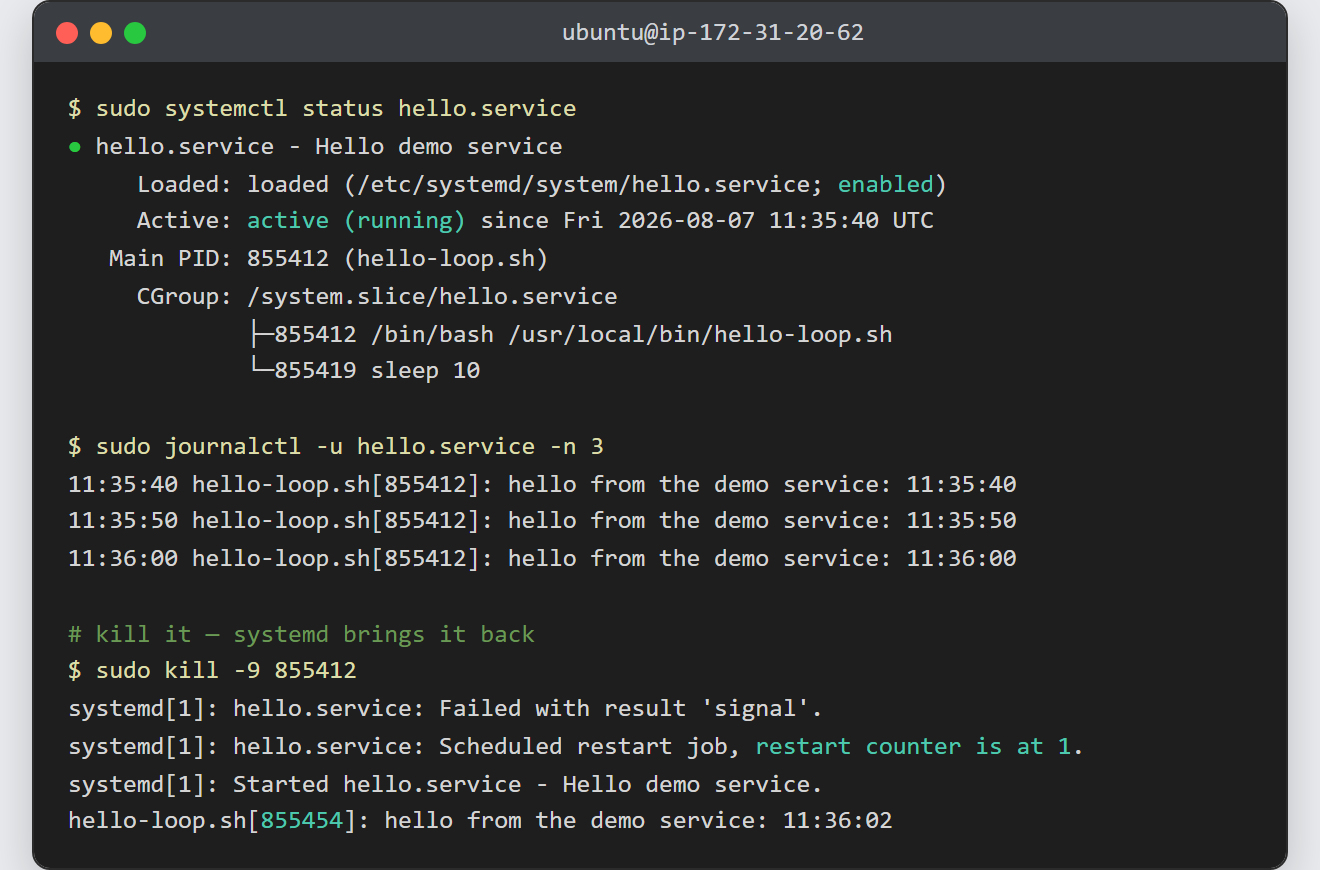
The service runs under systemd’s watch: status reports it active (running) and enabled for boot, the journal collects every line it prints, and a forced kill produces a new main PID (855412 → 855454) a couple of seconds later. This is the real output from Ubuntu 24.04 with systemd 255 — shown above and in the capture below.
Notes on creating a systemd service:
- Edit, then reload. After any change to the unit file, run
sudo systemctl daemon-reloadbefore restarting the service, or systemd keeps using the old definition. Restart=alwaysalso restarts after a clean exit — right for a worker that should never stop. AddRestartSec=5to pause between attempts, or rapid crash loops will trip the start-rate limiter.- Run services as the least-privileged user that works (the
User=line). A service that only reads a queue does not need root. - To stop and unhook a service completely:
sudo systemctl disable --now hello.service, delete the unit file, anddaemon-reloadagain. - A service suits a program that must run continuously. For something that runs on a schedule instead, schedule tasks with cron — and you will typically manage both over SSH, so connecting with SSH keys pays off daily.