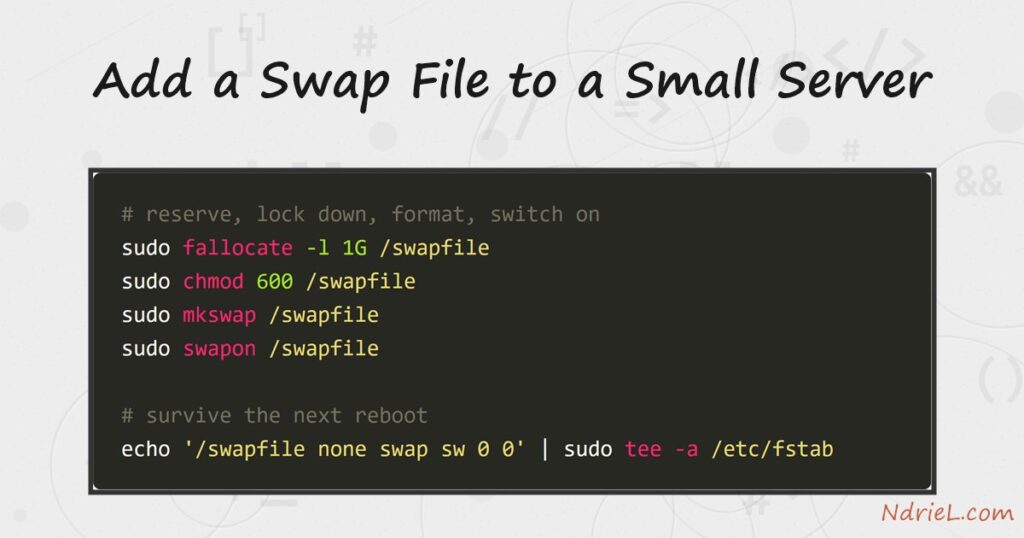
Add a swap file to a small server and a memory spike stops killing your processes. A 1 GB virtual machine runs out of RAM long before it runs out of disk, so a slice of disk steps in as overflow. First, fallocate reserves the file and chmod locks it down. Next, mkswap formats it and swapon switches it on. Finally, one line in /etc/fstab makes it survive a reboot, and vm.swappiness tells the kernel how eagerly to use it.
Requirements to add a swap file:
- A Linux server with sudo access (tested on Ubuntu 24.04.4 LTS, kernel 6.17). A t2.micro from the Amazon EC2 tutorial is the classic candidate — 1 GB of RAM and no swap out of the box.
- About 1 GB of free disk space. Check with
df -h /before you start. - The mkswap and swapon tools from util-linux. Every mainstream distribution ships them already.
How To Add a Swap File to a Small Server.
The objective is to give the kernel a safety margin, because on a swapless box one hungry process invites the OOM killer. The demo box already carries a 2 GB /swapfile, so the examples create a second file named /swapfile2. On a server with no swap yet, use the conventional name /swapfile instead — the commands are otherwise identical.
Step 1.
First, look at what the server has now. free -h prints memory and swap in human units.
free -h total used free shared buff/cache available
Mem: 1.8Gi 763Mi 267Mi 131Mi 1.1Gi 1.0Gi
Swap: 2.0Gi 59Mi 1.9GiThe Swap: row is the one that matters. On a fresh server it reads 0B across the board, and swapon --show prints nothing at all.
Step 2.
Next, reserve the file. fallocate allocates a gigabyte instantly, without writing a gigabyte of zeros.
sudo fallocate -l 1G /swapfile2
ls -lh /swapfile2
-rw-r--r-- 1 root root 1.0G Aug 16 11:19 /swapfile2However, that -rw-r--r-- mode is too open — swap can contain anything that was in memory, including secrets. Therefore, restrict it to root before formatting.
sudo chmod 600 /swapfile2
ls -lh /swapfile2
-rw------- 1 root root 1.0G Aug 16 11:19 /swapfile2Step 3.
Then, format the file as swap space and switch it on. mkswap writes the swap signature; swapon hands it to the kernel.
sudo mkswap /swapfile2
sudo swapon /swapfile2
Setting up swapspace version 1, size = 1024 MiB (1073737728 bytes)
no label, UUID=213b3608-1811-4681-8420-62217223deb5As a result, the new area is live immediately. swapon --show lists every active swap device.
swapon --showNAME TYPE SIZE USED PRIO
/swapfile file 2G 59.7M -2
/swapfile2 file 1024M 0B -3Both files appear here because this box already had one. On your fresh server, your new file is the only line.
Step 4.
A reboot would drop the swap file silently, so make it permanent. One line in /etc/fstab re-activates it at every boot.
echo '/swapfile2 none swap sw 0 0' | sudo tee -a /etc/fstabThe fields mean: the file, no mount point, type swap, default swap options, and two zeros that skip dump and fsck. Consequently, the file behaves exactly like built-in swap from the next boot onward.
Step 5.
Finally, tune how eagerly the kernel swaps. vm.swappiness runs from 0 to 200; Ubuntu’s stock value is 60, which is tuned for desktops. For a server, a low value such as 10 keeps applications in RAM and treats swap as a true emergency overflow.
sudo sysctl vm.swappiness=10
sysctl vm.swappiness
vm.swappiness = 10To keep that setting across reboots, also drop it into a sysctl.d file: echo 'vm.swappiness=10' | sudo tee /etc/sysctl.d/99-swappiness.conf.
The result after you add a swap file.
Run free -h once more. The swap total has grown by exactly one gigabyte, and the kernel can now ride out a memory spike instead of killing the largest process.
free -h total used free shared buff/cache available
Mem: 1.8Gi 765Mi 264Mi 131Mi 1.1Gi 1.0Gi
Swap: 3.0Gi 59Mi 2.9Gi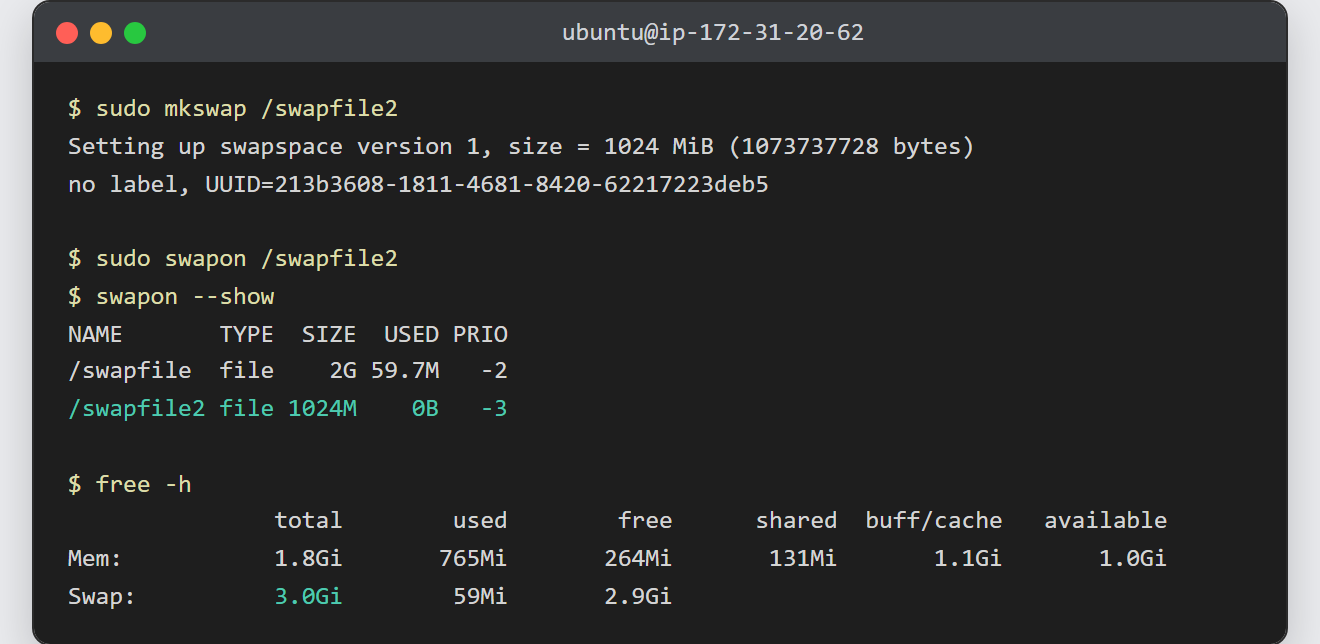
Notes before you add a swap file:
- Swap is overflow, not extra RAM. Disk is orders of magnitude slower than memory, so a server that swaps constantly needs more RAM, not more swap. Watch the
USEDcolumn with the commands from checking disk, memory and CPU usage from the terminal. - The
600mode is not optional. swapon warns about, and some kernels refuse, a world-readable swap file. fallocateis safe on ext4. On XFS or Btrfs, however, create the file withsudo dd if=/dev/zero of=/swapfile2 bs=1M count=1024instead — swap files with unwritten extents are rejected there.- To undo everything:
sudo swapoff /swapfile2, delete the file, and remove the /etc/fstab line.