systemd timers run scheduled jobs with the tooling you already use for services: a unit file, systemctl, and logs in journalctl. A timer is a pair — a .service that does the work and a .timer that decides when. First, this tutorial writes both units for a nightly job. Next, it activates the timer and reads the schedule with systemctl list-timers. Finally, it test-fires the job on demand and explains when a timer beats a cron line.
Requirements for systemd timers:
- A Linux server running systemd (tested with systemd 255 on Ubuntu 24.04.4 LTS) and sudo access.
- A job worth scheduling. The example reports disk usage nightly; the backup command from the tar part of this series slots in the same way.
- Familiarity with service units helps — creating a systemd service covers the half this tutorial builds on.
How To Run Scheduled Jobs With systemd Timers.
The objective is a job that runs at 03:00 every night, logs itself, and catches up if the server was off at the time. The units are named disk-report; by default, disk-report.timer activates disk-report.service — matching names wire the pair together.
Step 1.
First, write the service — the what. Unlike the long-running service from the earlier tutorial, a scheduled job is Type=oneshot: it runs, finishes, and exits.
sudo tee /etc/systemd/system/disk-report.service[Unit]
Description=Report disk usage of the web root
[Service]
Type=oneshot
ExecStart=/usr/bin/du -sh /var/wwwThere is no [Install] section here, because nothing enables the service itself — the timer starts it. Whatever ExecStart prints lands in the journal, which is the log half of the appeal.
Step 2.
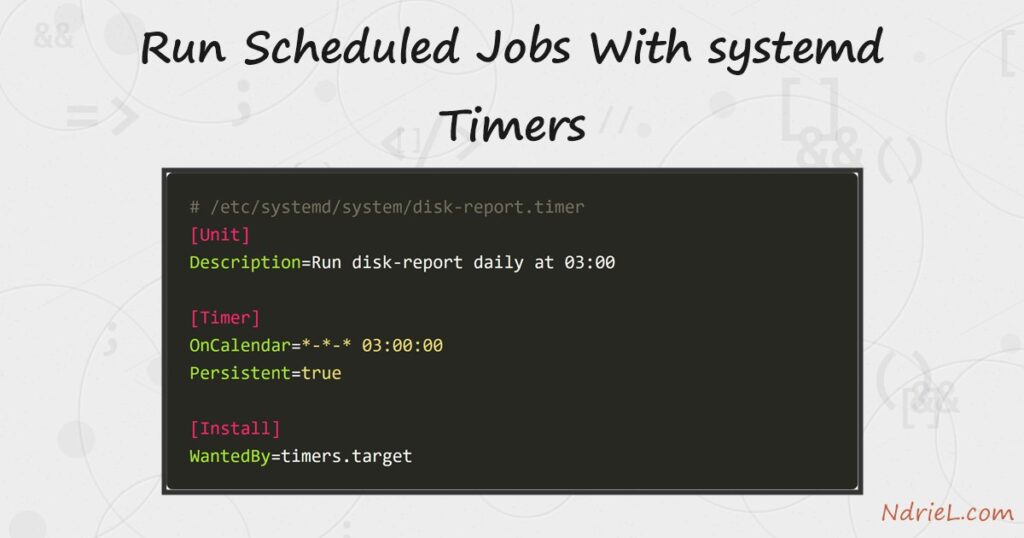
Next, write the timer — the when.
sudo tee /etc/systemd/system/disk-report.timer[Unit]
Description=Run disk-report daily at 03:00
[Timer]
OnCalendar=*-*-* 03:00:00
Persistent=true
[Install]
WantedBy=timers.targetOnCalendar reads as year-month-day hour:minute:second, with * meaning every. Therefore *-*-* 03:00:00 is “every day at 03:00”. Before trusting any expression, ask systemd itself what it means:
systemd-analyze calendar "*-*-* 03:00:00"Normalized form: *-*-* 03:00:00
Next elapse: Mon 2026-08-17 03:00:00 UTC
From now: 15h leftStep 3.
Then, load and activate the pair. Timers are enabled like any unit; the service stays passive.
sudo systemctl daemon-reload
sudo systemctl enable --now disk-report.timer
Created symlink /etc/systemd/system/timers.target.wants/disk-report.timer → /etc/systemd/system/disk-report.timer.As a result, the schedule is live. systemctl list-timers shows every active timer with its next and last run:
systemctl list-timers disk-report.timerNEXT LEFT LAST PASSED UNIT ACTIVATES
Mon 2026-08-17 03:00:00 UTC 15h - - disk-report.timer disk-report.serviceStep 4.
Instead of waiting for 03:00, test-fire the job by starting the service directly — this is the standard way to prove the work unit runs.
sudo systemctl start disk-report.service
journalctl -u disk-report.service -n 5Aug 16 11:22:36 ip-172-31-20-62 systemd[1]: Starting disk-report.service - Report disk usage of the web root...
Aug 16 11:22:40 ip-172-31-20-62 du[1307198]: 1.6G /var/www
Aug 16 11:22:40 ip-172-31-20-62 systemd[1]: disk-report.service: Deactivated successfully.
Aug 16 11:22:40 ip-172-31-20-62 systemd[1]: Finished disk-report.service - Report disk usage of the web root.The journal keeps the job’s output (1.6G /var/www) with timestamps, forever searchable by unit name. No >> /var/log/mylog 2>&1 bolted onto the command — logging is simply built in.
Step 5.
Finally, the flag that quietly justifies the whole setup: Persistent=true. If the server is powered off at 03:00, the job runs at the next boot instead of silently skipping a day. Cron, by contrast, misses the run unless you also install anacron. Timers also support jitter (RandomizedDelaySec) and dependencies (Requires=), so a backup can wait for a mount before it starts — things a crontab line cannot express. For a quick one-liner on a box you rarely touch, cron remains perfectly fine; for jobs you care about, the timer pays for its two files.
The result from systemd timers.
The schedule is registered, the next run is visible, and the last test-fire is in the journal — all inspectable with two commands.
NEXT                        LEFT LAST PASSED UNIT              ACTIVATES
Mon 2026-08-17 03:00:00 UTC  15h -         - disk-report.timer disk-report.service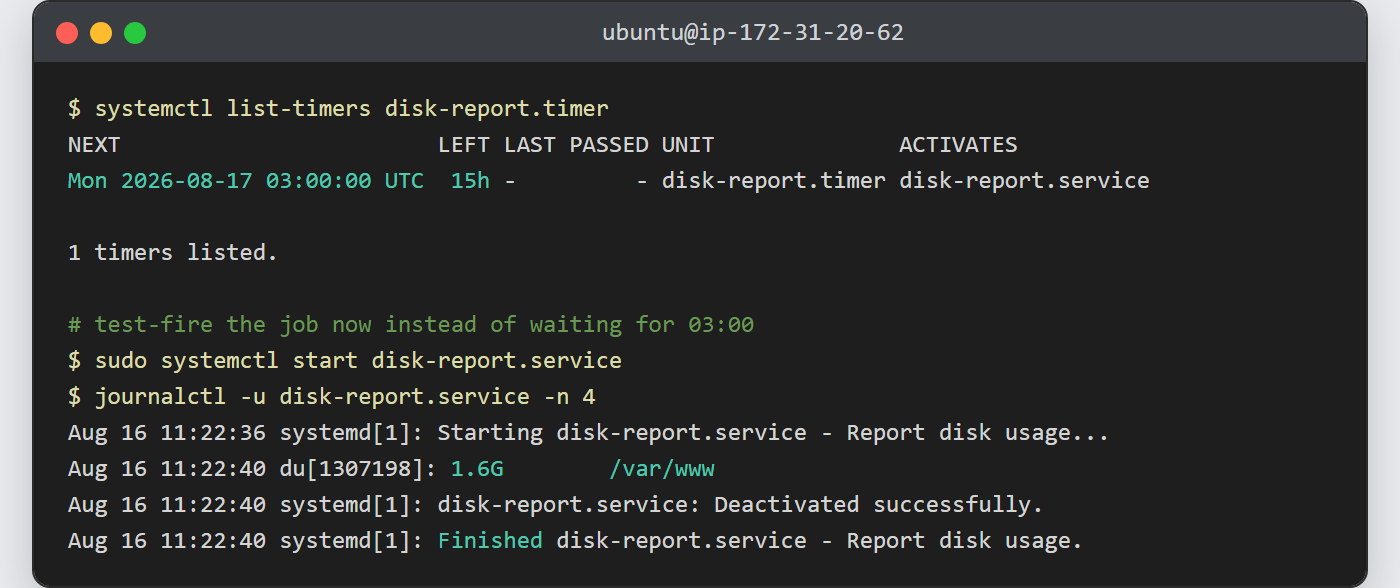
Notes on systemd timers:
- The timer activates the service that shares its name. To point elsewhere, set
Unit=in the[Timer]section. OnCalendaraccepts shorthands —daily,weekly,Mon..Fri 08:00— and lists:OnCalendar=*-*-01 04:00:00runs monthly. Check every expression with systemd-analyze calendar first.- See inactive timers too with
systemctl list-timers --all; stop a schedule withsudo systemctl disable --now disk-report.timer. - Times are interpreted in the server’s timezone — this box runs UTC, so 03:00 means 03:00 UTC.