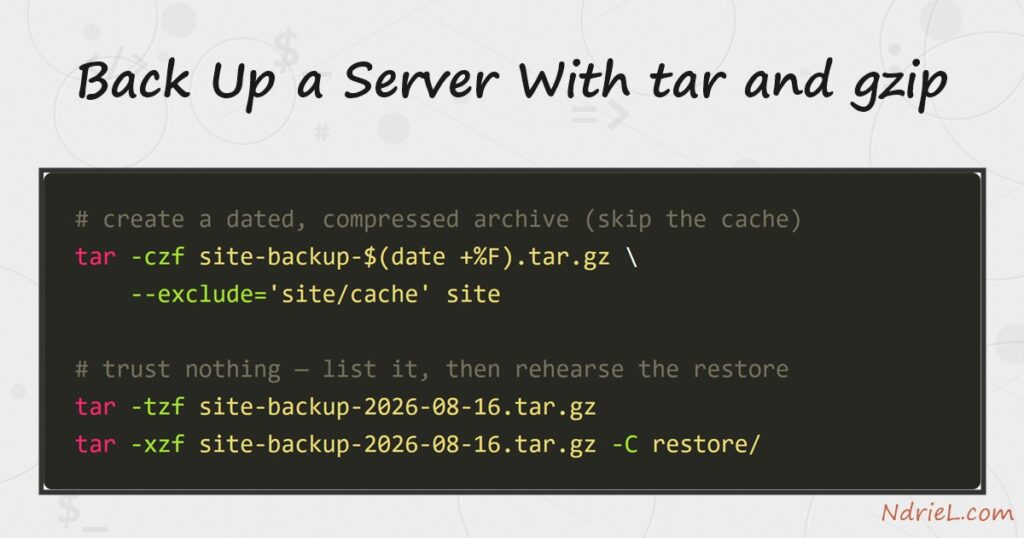
Back up a server with tar and gzip and the whole file side of your site fits in one dated, compressed archive. In fact, tar -czf creates it, tar -tzf lists what is inside, and tar -xzf restores it — three flags apart. First, this tutorial archives a site directory with a timestamped name. Next, it verifies and restores the archive. Finally, it copies the backup off the box, because a backup that lives next to the original dies with it.
Requirements to back up a server with tar:
- GNU tar and gzip (tested with tar 1.35 and gzip 1.12 on Ubuntu 24.04.4 LTS). Every mainstream distribution ships both already, so there is nothing to install.
- A directory worth saving. For example, this tutorial archives the site we deployed in the rsync part of this series, sitting at /tmp/a68/site.
- Also, rsync or scp on your own machine for the off-box copy.
How To Back Up a Server With tar and gzip.
The objective is a repeatable archive of the files a fresh install cannot recreate: the site itself and its uploads. In this case, the demo directory contains the site from the last part plus an uploads/ folder worth keeping and a cache/ folder worth skipping.
Step 1.
First, create the archive with a date in its name, so today’s mistake never overwrites yesterday’s backup.
cd /tmp/a68
tar -czf site-backup-$(date +%F).tar.gz --exclude='site/cache' site
ls -lh site-backup-*.tar.gz
-rw-rw-r-- 1 ubuntu ubuntu 598 Aug 16 11:22 site-backup-2026-08-16.tar.gzIn short, the flags read: -c create, -z gzip-compress, -f write to this file. $(date +%F) expands to 2026-08-16, and --exclude drops the cache — the site regenerates that content on demand, so archiving it wastes space.
Step 2.
Next, trust nothing — list the archive’s contents before you need them. The -t flag prints the listing, so tar extracts nothing.
tar -tzf site-backup-2026-08-16.tar.gzsite/
site/index.html
site/uploads/
site/uploads/photo-1.jpg
site/uploads/photo-2.jpg
site/js/
site/js/app.js
site/css/
site/css/style.cssThe uploads are in and the cache is out — just what the exclude promised. A backup you have never listed is a hope, not a backup.
Step 3.
Then, rehearse the restore. Extract into a scratch directory with -C, never straight over the live site.
mkdir -p /tmp/a68/restore
tar -xzf site-backup-2026-08-16.tar.gz -C /tmp/a68/restore
ls -R /tmp/a68/restore/site
/tmp/a68/restore/site:
css
index.html
js
uploads
/tmp/a68/restore/site/css:
style.css
/tmp/a68/restore/site/js:
app.js
/tmp/a68/restore/site/uploads:
photo-1.jpg
photo-2.jpgAs a result, everything came back. In a real recovery you would inspect this copy, then move it into place — the restore drill costs a minute and removes all the guesswork from a bad day.
Step 4.
Finally, get the archive off the box. From your own machine, pull it down with the same rsync-over-SSH routine that deployed the site.
rsync -av -e "ssh -i ~/.ssh/mykey.pem" \
  ubuntu@203.0.113.10:/tmp/a68/site-backup-2026-08-16.tar.gz backups/
receiving incremental file list
site-backup-2026-08-16.tar.gz
sent 43 bytes received 729 bytes 171.56 bytes/sec
total size is 598 speedup is 0.77As a result, a dead disk, a bad upgrade, or a break-in no longer takes the backup down with the site.
The result when you back up a server with tar.
Three short commands produced one dated archive, proved its contents, rehearsed the restore, and moved a copy off the box — and you can re-run them any morning.
-rw-rw-r-- 1 ubuntu ubuntu 598 Aug 16 11:22 site-backup-2026-08-16.tar.gz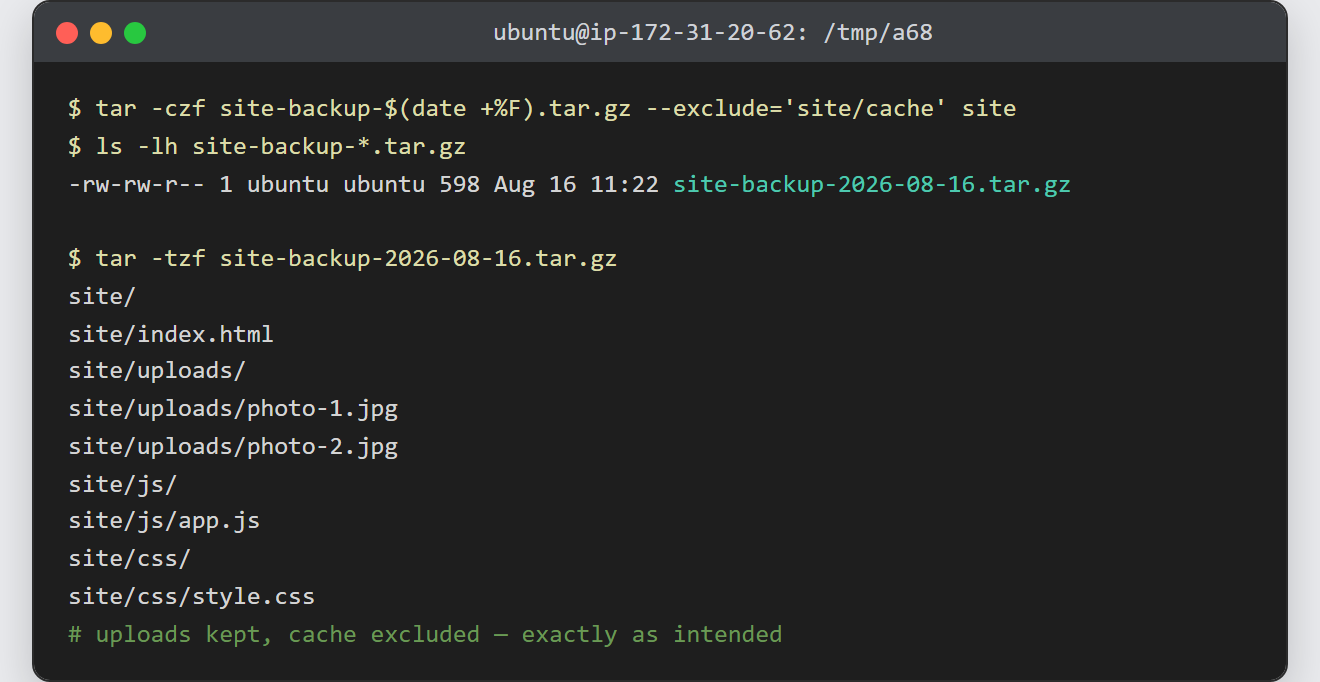
Notes when you back up a server with tar:
- However, this is only the file half of a full backup. The database half is a mysqldump — backing up a MySQL database in the terminal walks through it — so run both, because neither can restore the other.
- tar stores paths relative to where you ran it. Running it from the parent directory (or with
-C) keeps the archive portable; absolute paths, in contrast, make restores awkward. - Meanwhile, old archives accumulate. Delete anything past your retention window, for example
find /tmp/a68 -name 'site-backup-*.tar.gz' -mtime +14 -delete. - A manual backup happens only on a good day. Therefore, schedule the same command — cron runs it nightly without a reminder.